Guides
Step-by-step instructions for every integration
How to Upload and Analyse Audio Files
Drop any audio or video file into XMOX and get a full AI-powered transcript in minutes. Supports MP3, WAV, M4A, FLAC, OGG, OPUS, MP4, MOV, WEBM, and MKV up to 500 MB.
Read guide →
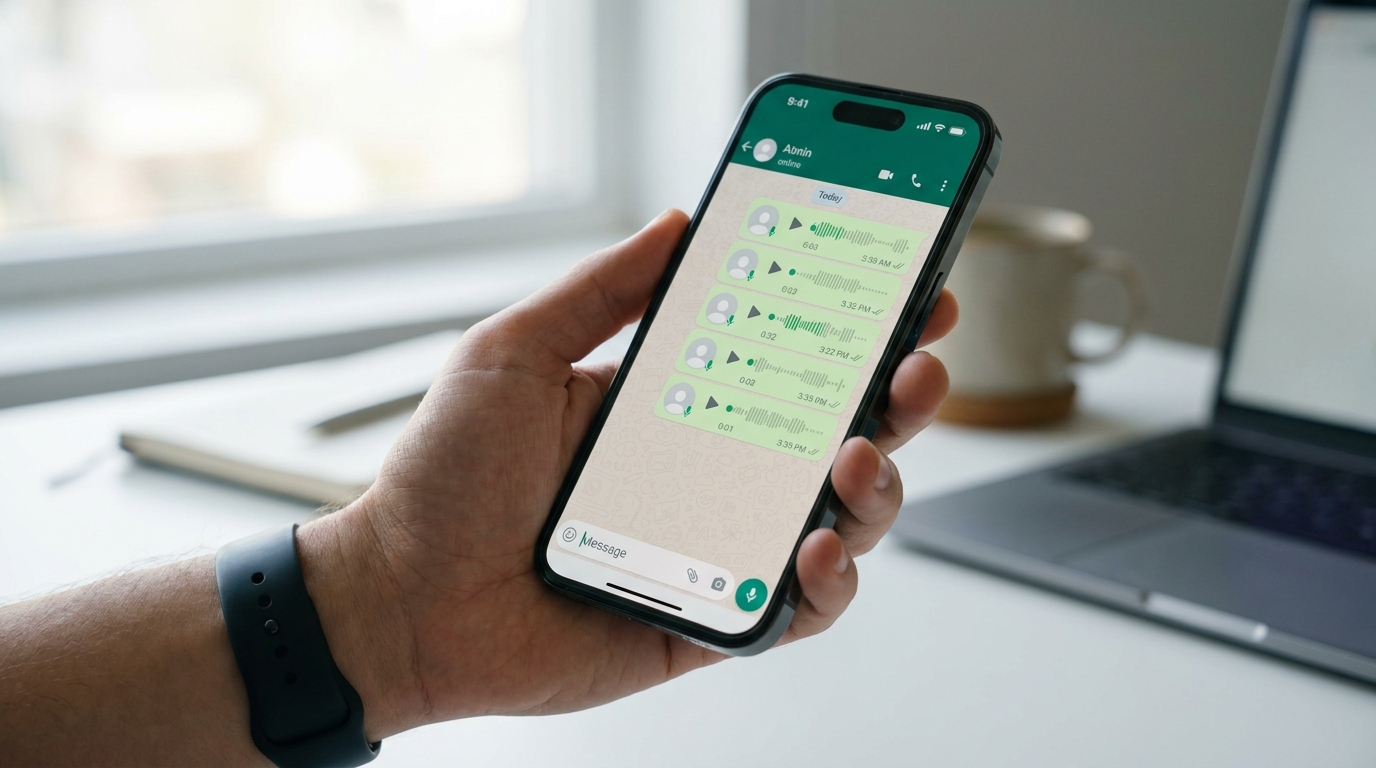
How to Export and Analyse WhatsApp Chats
Export any WhatsApp chat — including voice notes — as a ZIP file from Android or iPhone and upload it to XMOX for full AI analysis. No unzipping required.
Read guide →

How to Export and Analyse Telegram Chats
Telegram Desktop lets you export any chat — including voice and video messages — as a JSON archive. Upload the ZIP to XMOX for full AI-powered analysis.
Read guide →

How to Export and Analyse iMessage Conversations
Export your iMessage conversations — including audio messages — using the open-source imessage-exporter tool on macOS, then upload the ZIP to XMOX for AI analysis.
Read guide →

How to Analyse YouTube Videos
Paste any YouTube URL — including Shorts and live replays — and XMOX downloads the audio track, transcribes it, and makes the content searchable and queryable with AI.
Read guide →

How to Connect Zoom and Auto-Import Recordings
Connect Zoom once and XMOX automatically imports every cloud recording within minutes of it finishing — no manual uploads needed.
Read guide →

How to Connect Google Meet and Auto-Import Recordings
Connect your Google account once and XMOX watches your Meet Recordings folder in Drive — every new recording is imported and transcribed automatically.
Read guide →

How to Connect Microsoft Teams and Auto-Import Recordings
Connect your Microsoft 365 account and XMOX automatically imports Teams recordings from OneDrive or SharePoint — both channel meetings and 1:1 calls.
Read guide →